
 Checked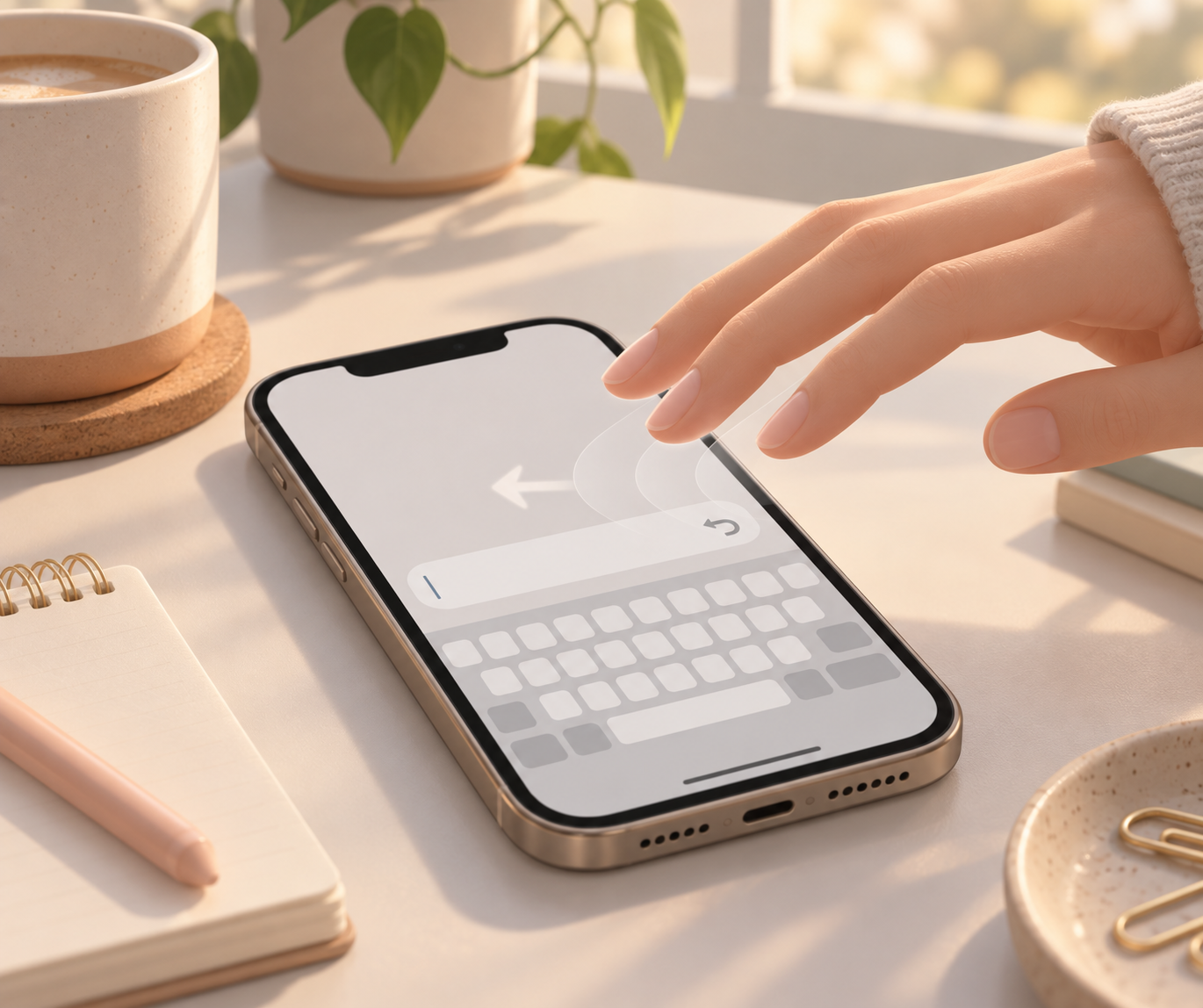
How to do it
When you mistype, delete text by accident, or replace the wrong word, swipe left with three fingers across the screen. iOS undoes the last text edit. It is useful in Notes, Messages, Mail, and many other text fields.
To redo the change, swipe right with three fingers. That restores the edit you just undid.
Why it helps
This gesture is faster and less awkward than shaking your iPhone. You do not need to hunt for a keyboard button or open a menu while you are in the middle of writing.
It pays off most in longer text: one accidental deletion or wrong replacement can be fixed immediately before you lose your flow.
Good to know
You can also tap the screen with three fingers. iOS then shows a small editing bar with undo, cut, copy, paste, and redo.
Some apps use custom editors, so the gesture can behave differently. If the swipe does nothing, try the three-finger tap or use the app's own editing controls.
Sources
Selected references used to verify or support this tip.
- Type with the onscreen keyboard on iPhone Apple Support · official_docs